Can I create, schedule and publish social media posts directly from Claude?

Yes. AutomateSocials has a hosted MCP server that you add to Claude (claude.ai and Claude Desktop) as a custom connector. Once connected, you can ask Claude to write posts, make pictures, schedule them and publish to Facebook, Instagram, X, LinkedIn and TikTok after you approve. If another agent already writes your posts, you can use AutomateSocials just to publish.
Why founders want to post from the assistant they already use
If you think in Claude all day, a separate social media app is one more tab and one more place to copy text between. You draft the idea in the chat, paste it into a scheduler, fix the formatting for each network, upload a picture, pick a time. Then you do it again tomorrow.
AutomateSocials started from the same frustration. In the founder's words, the goal was to have managing everything in one place, without repeating the same daily steps by hand. Posting from the chat you already have open is the natural next step.
What an MCP connector is, in plain words
MCP (Model Context Protocol) is a standard way for an AI assistant to use tools that live outside it. A service publishes an MCP server; you add that server to your assistant as a connector; from then on, the assistant can call the service's tools when you ask it to.
For AutomateSocials, the server exposes every tool the in-app agent has, with the same names. Your assistant can write posts, make pictures and video, schedule, publish and read back what happened. The posts land in the same calendar you see in the web app.
This guide uses Claude. Other assistants that support MCP connectors can connect to the same server too; we covered Grok in AutomateSocials in Grok.
How to connect AutomateSocials to Claude
Start in AutomateSocials: open Project setup → API keys & MCP and create a key. The MCP endpoint is https://automatesocials.net/mcp. One key belongs to one project, so to brief a second brand from the same chat you add a second connector with that project's key.
Claude (claude.ai and Claude Desktop)
- 1.In AutomateSocials, copy the connector URL shown under "claude.ai and Claude Desktop". Your key sits at the end of it (
https://automatesocials.net/mcp/sk_live_...). - 2.In Claude, go to Customize → Connectors, click Add, hover over Custom and select Web.
- 3.Enter a name (for example, AutomateSocials), paste the URL and click Continue.
- 4.Review the authentication settings Claude detected and click Continue. Under Authentication, choose No sign in: the key is already in the URL, so no OAuth client and no request header are needed.
- 5.Click Add. In a chat, open + → Connectors and switch AutomateSocials on.
Treat that URL like a password. If it leaks, revoke the key under Project setup → API keys & MCP and the URL stops working at once.
What you can do from the chat
Once connected, you brief your assistant in plain words, the same way you would brief the in-app agent:
- •Write posts from your project's website, profile and knowledge base, with a version for each network.
- •Make pictures and short videos in your project's visual style.
- •Schedule a post now, at a time you name, or in the next free weekly slot.
- •Publish to Facebook, Instagram, X, LinkedIn and TikTok after you approve.
- •Check status, links and engagement per network.
Over a connector, the asking is done by your chat: Claude confirms before a tool that writes runs. At the start of every session, the AutomateSocials server also tells Claude which tools cost credits and which ones publish, so it can quote and ask first.
Publish-only mode: your agent writes, AutomateSocials publishes
Some teams already have their own writing setup: a Claude project with their brand rules, or another agent. You don't have to replace it. Connect us just to publish. Your agent generates the post and the picture; AutomateSocials puts it on the calendar and publishes it to the networks you connected, through the same MCP server.
Developers can do the same from code with the REST API, or from Claude Code over the same MCP server.
One real example
A good first question in a new chat is "Which accounts are connected?" Then something like: "Write a LinkedIn post about our autumn offer and save it as a draft." The assistant picks the tools, shows the draft, asks before it spends credits, and the post appears under Drafts in the app, where you can still edit it, schedule it or publish it later.
Here is what that looked like when we did it ourselves on 20 October 2026, using AutomateSocials from Claude (the Claude Code chat in VS Code). This is the one message we sent, word for word:
Use AutomateSocials, project AutomateSocials (automatesocials.net). This is a demo for our blog, so make drafts only. You may use ONLY plan_campaign, one draft post with one picture, and save_draft. Do NOT use start_campaign, write_campaign_posts or create_post, and do not publish or schedule anything.

1. Which accounts are connected?
2. Plan a campaign with plan_campaign, plan only, don't start it. Name: "AEO worked example — one brief, one month (plan only)". Goal: "Solo founders with no time for marketing: show how one brief in plain words becomes a month of posts for Facebook, X and LinkedIn." 8 posts on Facebook, X and LinkedIn, Tuesdays and Thursdays at 09:00, starting 3 Nov 2026, source https://automatesocials.net/, no pictures in the plan. Show me the plan lines.
3. Write post 1 of that plan now as ONE draft with its own version for Facebook, X and LinkedIn, in our brand voice, in English. No link in the X version. Hashtags: Facebook 2–3, X 1–2, LinkedIn 2–3. Don't claim anything about card requirements, and use no multipliers.
4. Make one picture for it with Nano Banana, with no text in the image, and attach the same picture to all three versions. Tell me the price and wait for my OK before you make it.
5. Save it with save_draft and don't schedule it. Then tell me what this whole run cost in credits, and confirm that nothing shows as scheduled.
In short: check the connected accounts, plan a month of posts as a plan only, write the first post for Facebook, X and LinkedIn, make one picture, and save it all as a draft. This is what happened next:
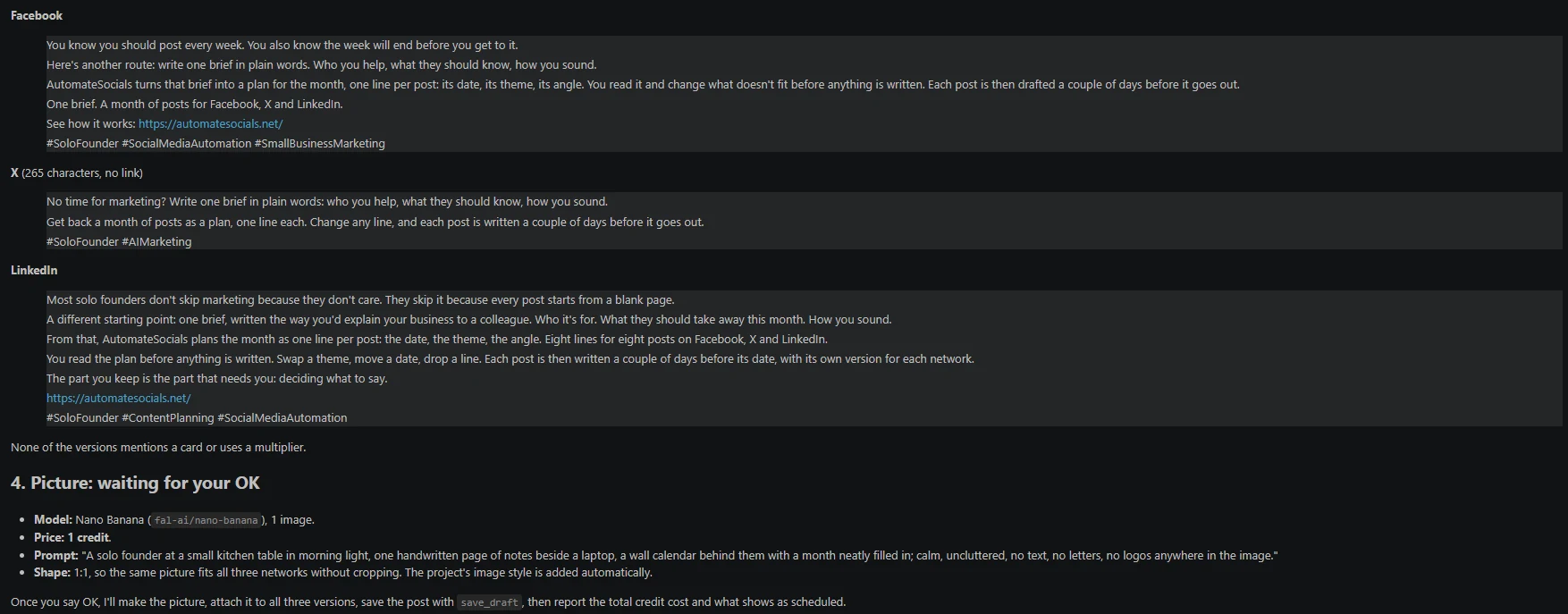
- 1.The versions. Claude showed the Facebook, X and LinkedIn versions it had written. The X version was 265 characters, with no link.
- 2.The price question. Before making anything that costs credits, it stopped and asked: Nano Banana, one image, 1 credit, the same picture for all three versions.
- 3.Drafts. After our OK it made the picture, saved the post as draft #58 with its three versions, and listed what each step cost: planning 0, picture 1, saving the draft 0. The whole run cost 1 credit. It also checked that nothing new had been scheduled.

What it costs to publish from Claude
The connector uses the same credits, prices and project rules as the web app:
| Action | Cost |
|---|---|
| Writing and scheduling posts | Free |
| Publishing to Facebook, Instagram, LinkedIn, TikTok | Free |
| Publishing to X | 1 credit, or 8 credits with a link |
| Generated picture | 1, 3 or 6 credits, depending on the model |
| Short video with sound | Starts at 1 credit |
There is no subscription. You get 50 free credits on signup, and credits never expire. For the full picture on pricing, see how it works and the help center; for automating posts in general, see how to automate social media posts with AI.
FAQ
Which Claude apps can connect to AutomateSocials?
Claude (claude.ai and Claude Desktop) connects through the hosted MCP server as a custom connector. Developers can also use Claude Code or the REST API.
Do I need to code to use the MCP connector?
No. You create a key in AutomateSocials and add the connector in your assistant's settings by pasting a URL. Code is only needed if you choose the REST API.
Does anything get published without my approval?
When you work through Claude, Claude confirms before a tool that writes runs, and the server tells it which tools publish or cost credits. Review your assistant's connector permissions so they match how you want to approve.
Can I use AutomateSocials only for publishing while another agent writes the posts?
Yes. Connect AutomateSocials just to publish: your own agent writes, and AutomateSocials schedules and publishes to your connected networks.
Which social networks are supported?
Facebook, Instagram, X, LinkedIn and TikTok.
What does it cost to publish from Claude?
Publishing to Facebook, Instagram, LinkedIn and TikTok is free. An X post costs 1 credit, or 8 with a link. Generated pictures and videos cost credits.
Connect AutomateSocials to Claude
Sign up free — 50 credits — and connect AutomateSocials to Claude.
Start with AutomateSocials →Related articles
All articlesIs there a social media tool with no monthly subscription?
AutomateSocials has no subscription: writing, scheduling and publishing are free. Pay only credits for pictures, video, feed reading and X posts.
Read AnnouncementAutomateSocials is now a Grok Bot: run your social calendar from inside Grok
Add the AutomateSocials bot to Grok Bot to plan, approve and publish posts on X, LinkedIn, Facebook, Instagram and TikTok. How it works, who it is for, and what credits cost.
Read TutorialHow to Automate Social Media Posts with AI: Step-by-Step
Learn how to set up automated social media posting with an AI agent, from connecting accounts and writing posts to pictures, scheduling and recurring workflows.
Read